Image Split Compare
Merge two screenshots (light/dark) into one split image. 100% browser-based.
What is a dark mode split image — and why do you need one?
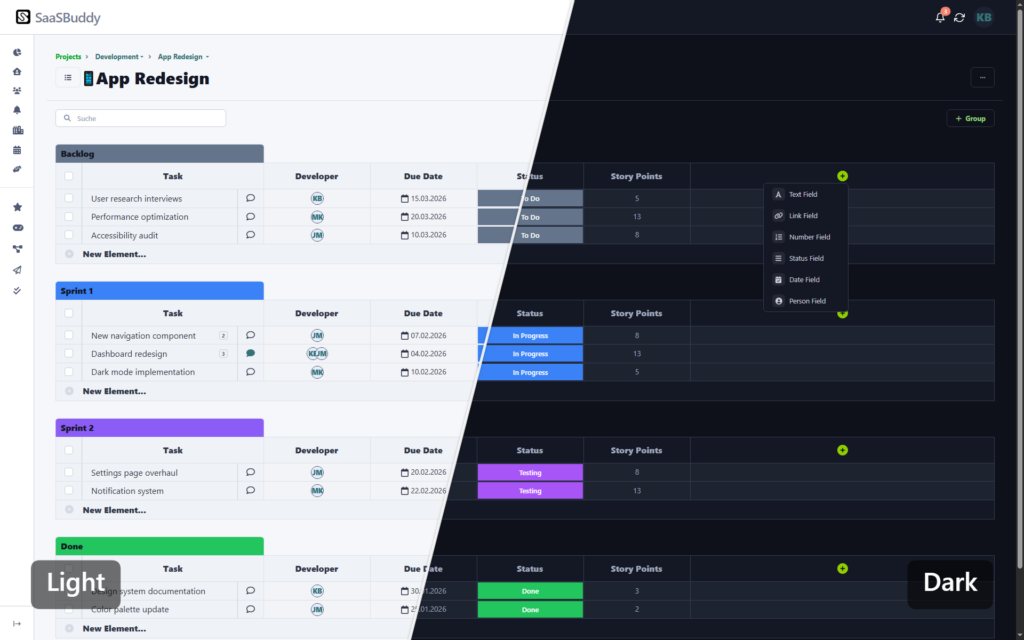
Most apps today support both light and dark mode. A dark mode split image is the cleanest way to show both at once — on a product page, a Dribbble shot, a README, or a social post.
The problem: there’s no simple tool for this. Most designers open Figma or Photoshop, manually position two screenshots side by side, add a divider, export. That’s five minutes of work every single time.
This tool does it in seconds. Upload your light and dark mode screenshot, pick a split style, adjust the position — done. Export as PNG, directly from your browser.
How to create a dark mode split image
Upload your light mode screenshot
drag and drop or click to upload on the left
Upload your dark mode screenshot
same on the right
Choose a split style
vertical, horizontal, diagonal, angled, wave, or zigzag
Adjust the split position
drag the slider to shift the divider left or right
Set your options
show or hide labels and the divider line
Click Generate Split Image
then download your PNG
For best results, use two screenshots with the same resolution.
Split styles for your dark mode split image
The tool offers 8 split styles for your light dark mode split image:
| Style | Best used for |
|---|---|
| Vertical | Standard side-by-side comparison |
| Horizontal | Top/bottom layouts, mobile screenshots |
| Diagonal / | Dynamic, editorial look |
| Diagonal \ | Mirrored diagonal split |
| Angled / | Softer angle, presentation decks |
| Angled \ | Mirrored soft angle |
| Wave | Creative, eye-catching visuals |
| Zigzag | Bold, graphic style |
Where to use a dark mode split image
Product pages & landing pages — show your UI in both modes without doubling your screenshot space. One image, full context.
README files on GitHub — a single split image in your repo header is cleaner than two stacked screenshots. GitHub’s README documentation recommends using visuals to explain your project at a glance.
Dribbble & Behance — split images perform well on design platforms because they show more information in a single frame.
Social media — Twitter, LinkedIn, and Threads all crop images differently. A split image works well in any format because both modes are always visible.
App Store & Play Store listings — show light and dark screenshots as one combined visual in your marketing assets.
Blog posts & documentation — anywhere you explain a UI change, a split image is faster to read than two separate images with captions.
Why "runs in your browser" matters
Most image tools upload your files to a server for processing. That means your screenshots — which might contain unreleased UI, internal dashboards, or confidential product designs — pass through someone else’s infrastructure.
This tool processes everything locally using the HTML5 Canvas API. Your screenshots never leave your device. There is no server request when you click Generate — you can verify this yourself by opening the network tab in your browser’s developer tools.
It’s the same approach DailyBuddy uses for its PDF tools and the free passphrase generator — no upload, no processing on a server, no file size limits.
Sharing the result with your team
Once you’ve exported your split image, you might need to send it to a client, a designer, or a developer — along with other files like specs, assets, or source screenshots.
DailyBuddy Send lets you share files via an encrypted link with an optional expiration date. No cloud storage account needed, no files sitting in someone’s inbox forever. The link expires when you want it to.
Dark mode split image — frequently asked questions
Yes, completely free. No account required, no usage limits, no watermarks.
No. Everything runs locally in your browser using the HTML5 Canvas API. Your screenshots never leave your device.
PNG and JPG are supported for both the light and dark mode screenshots.
Any resolution works, but for best results use two screenshots with the same resolution. If the resolutions differ, the tool scales them to fit.
Yes. The tool works with any two images — before/after redesigns, A/B test variants, seasonal themes, or any other side-by-side comparison you need.
The result is exported as a PNG file.
Since no data ever leaves your browser, nothing is collected, stored, or processed. There is nothing to protect.