Looking for a free way to change your WordPress login URL? You’re not alone. Every WordPress installation comes with the same default login page — yoursite.com/wp-admin. Automated scripts know this and hammer it around the clock with random username and password combinations. The good news? You can change your WordPress login URL for free in under 5 minutes — no coding required. Here’s exactly how to do it.

Why the default WordPress login URL is a security risk
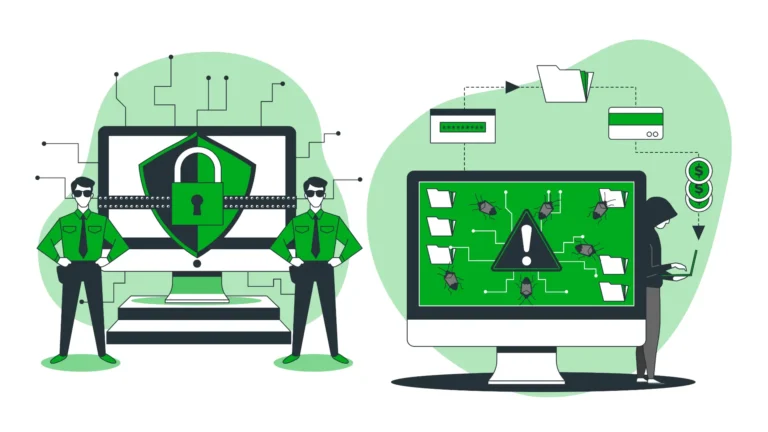
Every WordPress site installs with the same two login URLs: yoursite.com/wp-admin and yoursite.com/wp-login.php. Bots know this. That’s why brute force attacks against WordPress are so widespread — the entry point is always identical, regardless of who runs the site.
Changing your WordPress login URL doesn’t make your site unhackable — but it removes the low-hanging fruit. Most automated attacks move on immediately when the default URL returns a 404. It’s one of the easiest and most effective security improvements you can make, and it costs nothing.
How to change your WordPress login URL for free — using a plugin
The fastest and most reliable way to change your WordPress login URL is to use a free plugin. The most popular option is WPS Hide Login — free, lightweight, and compatible with any theme or page builder.
Go to your WordPress dashboard and navigate to Plugins → Add New. Search for “WPS Hide Login”, install and activate it. Then go to Settings → General and scroll to the bottom. Enter your new login URL — something like /team-access or /studio-portal — and save changes.
Your old /wp-admin and /wp-login.php URLs now return a 404 error. Your new URL is the only way in.
Important: Write down your new login URL immediately and share it with your team. If you lose it and get logged out, you’ll need FTP access to your server to recover — which is a headache you don’t want.
If you’re already using the DailyBuddy WordPress Plugin, you don’t need WPS Hide Login at all. The custom login URL feature is built right in — alongside duplicate posts, maintenance mode, and media folder organization.
What login URL should you choose?
Not all custom URLs are equally safe. Avoid the obvious alternatives — /login, /admin, /dashboard, and /signin are the first ones bots try after /wp-admin fails.
Choose something specific and unpredictable instead: /team-portal, /studio-access, /your-brand-login, or /backend-2026. The less generic, the better. Think of it like choosing a strong password — the more specific to your setup, the harder it is to guess.
How to change your WordPress login URL without a plugin
If you’d rather not install an additional plugin, you can handle the redirect manually by editing your .htaccess file. Add the following lines — replacing /my-login with your chosen URL:
RewriteRule ^my-login$ /wp-login.php [L]
RewriteRule ^wp-admin$ /404 [R=301,L]
This approach requires basic familiarity with server file editing. If you’re not comfortable working with .htaccess files directly, stick with the plugin method — it’s faster, safer, and easier to reverse if something goes wrong.
Two more quick wins while you're at it
Changing your WordPress login URL is a great first step — but combine it with these two measures for a much stronger security baseline.
Limit login attempts. Use a plugin like Limit Login Attempts Reloaded to automatically block IP addresses after a set number of failed login tries. Free, takes 2 minutes to configure, and dramatically reduces brute force risk.
Enable two-factor authentication. Even if someone discovers your new login URL, 2FA means they still can’t get in without your phone. WP 2FA is a solid free option that works with any authenticator app.
One plugin that handles all of this — and more
If you want to keep your WordPress plugin stack lean, the DailyBuddy WordPress Plugin includes the custom login URL feature as part of a broader collection of practical tools — all free, all in one plugin.
What’s included:
- Custom login URL — change your /wp-admin path in seconds
- Duplicate posts — clone any post or page with one click
- Maintenance mode — take your site offline with a custom message
- Media folder organization — manage your uploads library cleanly
- Custom widgets and Elementor extensions
Only active modules load their code — zero bloat, zero performance impact. If you only need the login URL and duplicate posts, just enable those two. Everything else stays inactive.
If you’re already using DailyBuddy for project management, task tracking, or secure file transfer, the WordPress plugin fits right into the same ecosystem — one platform for your team’s daily work.