CSV to JSON Converter
Convert CSV to JSON and JSON to CSV. Paste, upload or edit — with live preview and download.
What is a CSV to JSON converter — and who needs one?
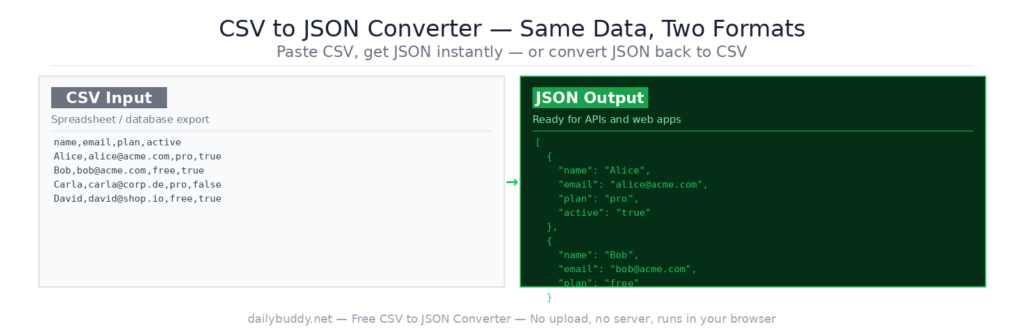
A CSV to JSON converter transforms tabular CSV data into structured JSON — or converts JSON back to CSV. Both formats are everywhere in modern development: CSV for spreadsheets and data exports, JSON for APIs and applications. Moving data between them is a daily task for developers, data analysts, and anyone working with imports and exports.
This tool converts in both directions, supports custom delimiters, handles headers automatically, and lets you download the result directly. Everything runs in your browser — no upload to any server.
How to convert CSV to JSON — step by step
CSV → JSON:
- Select the CSV → JSON tab
- Set your delimiter — Comma is standard, but Semicolon, Tab, and others are supported
- Check “First row is header” if your CSV has column names in the first row
- Set JSON indent — 2 Spaces, 4 Spaces, or Tab
- Paste your CSV into the input field — or upload a file
- The JSON output appears instantly in the right panel
- Copy or download the result
JSON → CSV:
- Select the JSON → CSV tab
- Paste your JSON into the input field
- The CSV output appears instantly in the right panel
- Copy or download the result
The swap button between the panels lets you flip input and output in one click.
CSV vs. JSON — when to use which
| CSV | JSON | |
|---|---|---|
| Best for | Spreadsheets, data exports, reports | APIs, web apps, config files |
| Structure | Flat, rows and columns | Nested, hierarchical |
| Human-readable | Very easy | Easy when formatted |
| Used by | Excel, Google Sheets, databases | REST APIs, JavaScript, NoSQL |
| File size | Smaller | Slightly larger |
When to convert between CSV and JSON
Importing data into a web application — most databases and CMS platforms export data as CSV. Convert to JSON to use it directly in a JavaScript application, a REST API, or a MongoDB import.
Processing spreadsheet exports — Google Sheets and Excel export as CSV. Convert to JSON to feed the data into a script, a Node.js process, or a data visualization.
Building mock API responses — turn a CSV of test data into a JSON array and use it as a mock API response during development. No database needed.
Converting API responses to CSV — flip the direction and convert a JSON API response to CSV for analysis in Excel or Google Sheets.
Data migration between systems — migrating data between platforms often requires converting formats. CSV in, JSON out — or the other way around — in seconds.
Creating seed data for development — maintain your seed data as a readable CSV spreadsheet, then convert to JSON when you need to insert it into a database or a test fixture.
Why everything runs locally in your browser
Most online converters upload your file to a server for processing. That means your data — which might contain customer records, financial figures, personal information, or confidential exports — passes through someone else’s infrastructure.
This tool processes everything locally using the browser’s built-in JavaScript engine. Your CSV and JSON data never leave your device. There is no server request when you convert — you can verify this yourself by opening the network tab in your browser’s developer tools.
It’s the same approach DailyBuddy uses for its PDF tools, the JSON formatter, and the Base64 encoder decoder — no upload, no server processing, no data collection.
Frequently asked questions
Yes, completely free. No account required, no usage limits.
No. Everything runs locally in your browser. Your CSV and JSON data never leave your device.
Comma is the standard CSV delimiter. The tool also supports Semicolon, Tab, and other common delimiters for European and custom CSV formats.
When checked, the first row of your CSV is used as the key names in the JSON output. When unchecked, columns are numbered automatically.
Yes. Switch to the JSON → CSV tab, paste your JSON, and the CSV output is generated instantly.
Yes. Click Upload file to upload a CSV directly from your device.
Yes. The output panel has a download button to save the result as a file directly to your device.
Since no data ever leaves your browser, nothing is collected, stored, or processed. There is nothing to protect.