Social Share Preview
See how your page looks on Facebook, X, LinkedIn, WhatsApp, Slack, Discord, Telegram, Pinterest and Google.
What is a social media preview tool — and why do you need one?
A social media preview tool shows you exactly how a webpage looks when shared on social media — before anyone else sees it. When you share a URL on Facebook, X, LinkedIn, or WhatsApp, those platforms read the Open Graph meta tags from your page and generate a preview card. If those tags are missing or wrong, the preview looks broken, unprofessional, or shows the wrong image.
This tool checks any URL across 9 platforms simultaneously, shows the rendered preview card for each, and lists every detected meta tag with a pass or fail status.
How to use this free social media preview tool
- Enter any URL in the input field
- Click Preview — the tool fetches the page and reads all meta tags
- Switch between platforms — Google, Facebook, X/Twitter, LinkedIn, WhatsApp, Slack, Discord, Telegram, Pinterest
- Toggle Desktop and Mobile — see how the preview looks on both
- Check Detected Meta Tags — a full list of all found tags with green checkmarks or red missing indicators
- Fix any issues — red tags need to be added or corrected in your page’s HTML or CMS settings
What meta tags this tool checks
| Tag | What it controls |
|---|---|
og:title |
Title shown in the social share card |
og:description |
Description text below the title |
og:image |
Preview image shown in the card |
og:url |
Canonical URL of the shared page |
og:site_name |
Name of the website shown below the card |
og:type |
Content type — article, website, product |
twitter:card |
Card format on X — summary or large image |
twitter:title |
Title specifically for X/Twitter cards |
twitter:description |
Description specifically for X/Twitter cards |
twitter:image |
Image specifically for X/Twitter cards |
twitter:site |
Your X/Twitter handle |
meta description |
Description shown in Google search results |
favicon |
Small icon shown in browser tabs and some cards |
When to use a social media preview tool
Before publishing a new page or blog post — check the preview before you share anything. A missing og:image or wrong title is easy to fix before publishing — much harder to fix after the link has been shared and cached by platforms. Learn more about Open Graph protocol standards at ogp.me.
After updating meta tags — platforms cache social previews for hours or days. Use this tool to verify your updated tags are being read correctly before clearing platform caches.
Checking competitor pages — enter any competitor URL to see exactly how they’ve set up their Open Graph tags. A useful benchmark for your own SEO and social setup. Track your findings and action items directly in DailyBuddy Projects — shared boards, timelines, and tasks for your whole team.
Debugging a broken preview card — if a shared link shows the wrong image, a default site image, or no image at all, this tool shows exactly which tag is missing or malformed.
Verifying every platform independently — Facebook, X, LinkedIn, and WhatsApp don’t all use the same tags. What looks correct on Facebook might show differently on LinkedIn. Check all 9 platforms here in one go.
Before a product launch or campaign — social share previews are the first thing people see when a link is shared. Make sure every platform shows the right image, title, and description before your launch. When you’re ready to share assets with your team, DailyBuddy Send lets you share files via encrypted link — no file sitting unprotected in anyone’s inbox.
The most common Open Graph mistakes
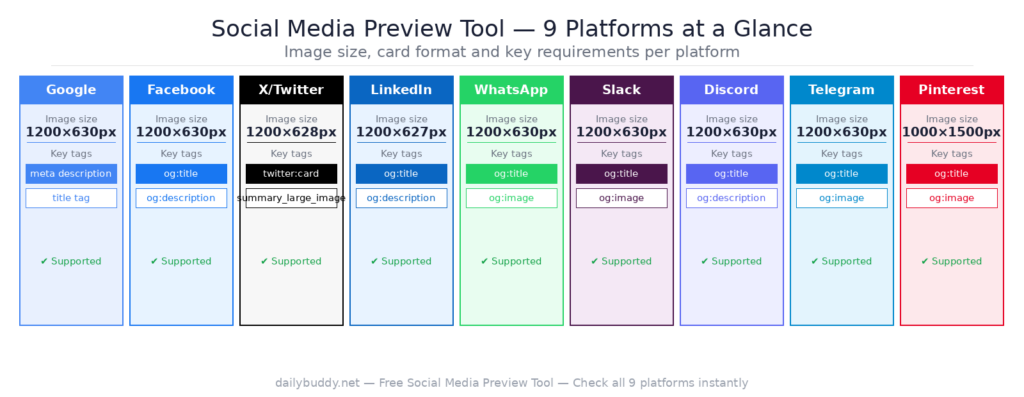
Missing og:image — the single most common issue. Without an og:image tag, most platforms show a blank card or pick a random image from the page. Always set a specific og:image of at least 1200×630px.
Wrong image size — Facebook and LinkedIn recommend 1200×630px. Images that are too small get ignored or shown as tiny thumbnails. Use the aspect ratio calculator to verify your OG image dimensions.
Missing twitter:card tag — without this tag, X/Twitter falls back to a minimal preview. Set it to summary_large_image for full-width image cards.
og:title too long — Facebook truncates titles at around 65 characters. Write concise og:titles and check how they appear in this tool before publishing.
Cached old preview — platforms cache previews aggressively. After fixing your tags, use Facebook’s Sharing Debugger or LinkedIn’s Post Inspector to force a refresh — then verify here again.
Why this social media preview tool fetches from a server
Unlike the other DailyBuddy browser tools, this tool needs to fetch the target URL to read its meta tags — that requires a server-side request since browsers block cross-origin fetches directly. The URL you enter is fetched server-side, the meta tags are extracted, and the preview is rendered in your browser. No data is stored, no tracking, no logging.
The rendered preview and tag analysis are processed entirely in your browser after the initial fetch. It’s the same privacy-first philosophy as the SEO keyphrase checker — server-side fetch, browser-side rendering, no data retention.
Frequently asked questions
Yes, completely free. No account required, no usage limits.
Yes. Enter any publicly accessible URL and the tool fetches and analyzes it.
Google, Facebook, X/Twitter, LinkedIn, WhatsApp, Slack, Discord, Telegram, and Pinterest — 9 platforms in total.
Each platform reads Open Graph tags slightly differently and has its own card format. Facebook uses og:image at 1200×630. X uses twitter:card and twitter:image. LinkedIn reads og tags but has stricter image requirements. This tool shows each platform's actual rendering.
Platforms cache social previews for hours or days. Use the platform's own debugger tool to force a cache refresh — Facebook Sharing Debugger, LinkedIn Post Inspector — then verify here again.
At least 1200×630px for Facebook and LinkedIn. X/Twitter recommends the same. Use the aspect ratio calculator to verify your dimensions.
The URL you enter is fetched server-side to read meta tags. No data is stored, no tracking, no logging. The preview rendering happens entirely in your browser.